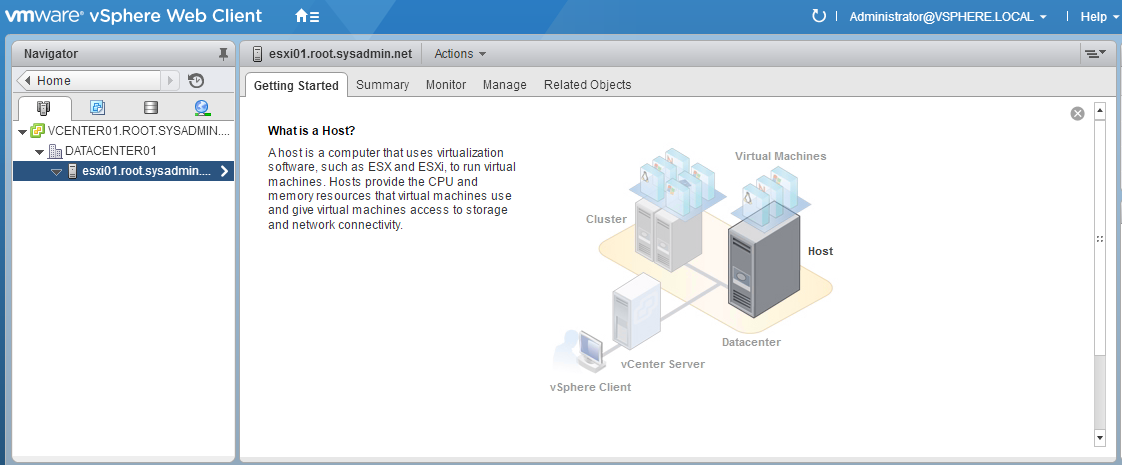
The following is a step by step guide for adding a VMware ESXi 6.0 host to a VMware vCenter Server 6.0 datacenter.
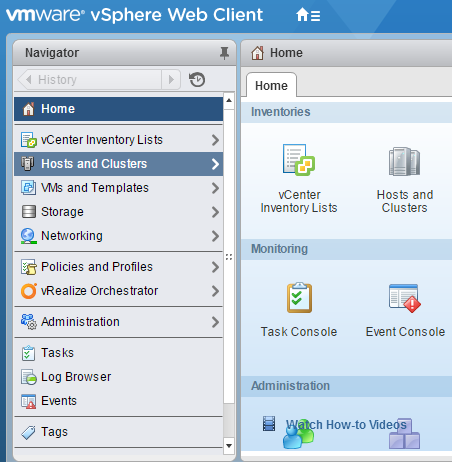
- On the home screen of the VMware vSphere Web Client select Hosts and Clusters.
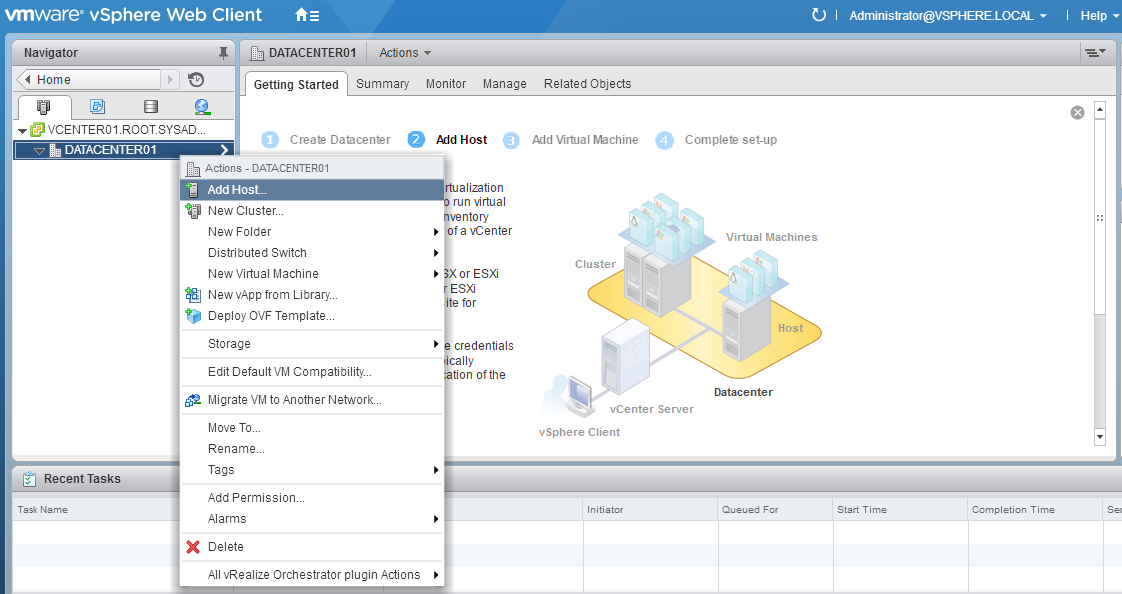
- Select the datacenter object, right click it then select Add Host….
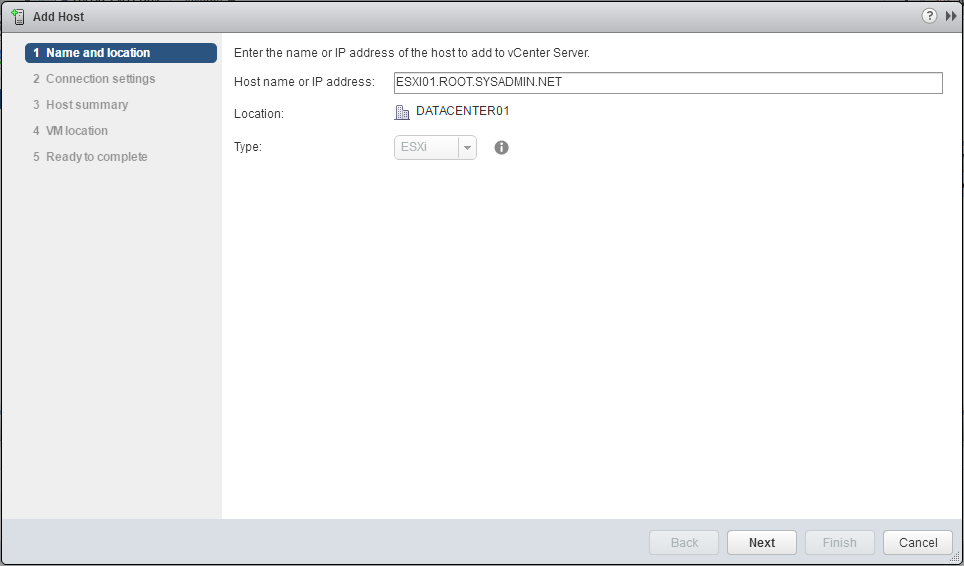
- On the Name and location section enter the hostname or Internet Protocol (IP) address of the VMware ESXi 6.0 host then click Next.
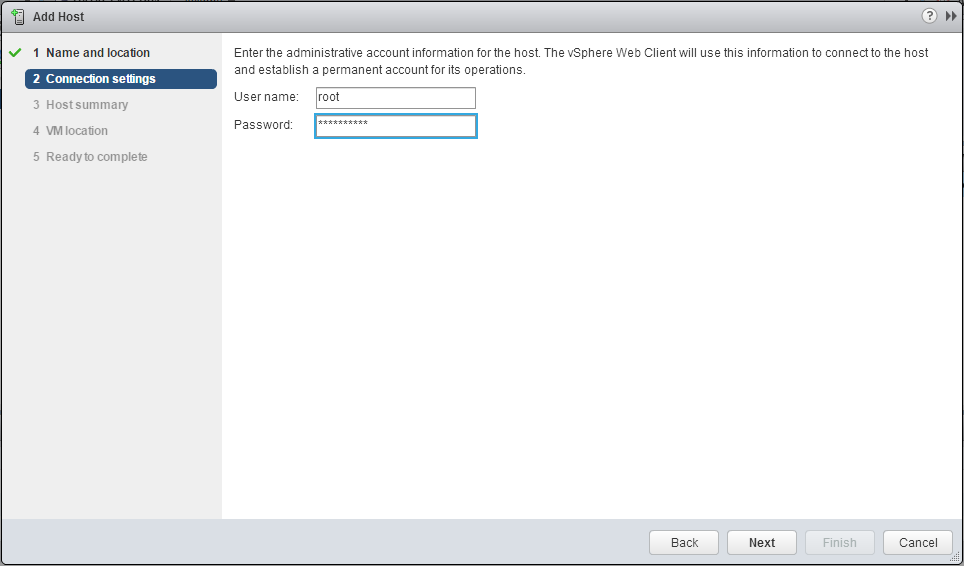
- On the Connection Settings section enter the authentication credentials for the root user account then click Next.
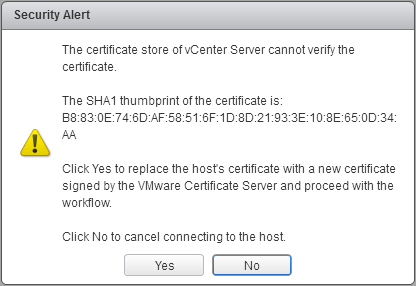
- On the Security Alert dialog box click Yes.
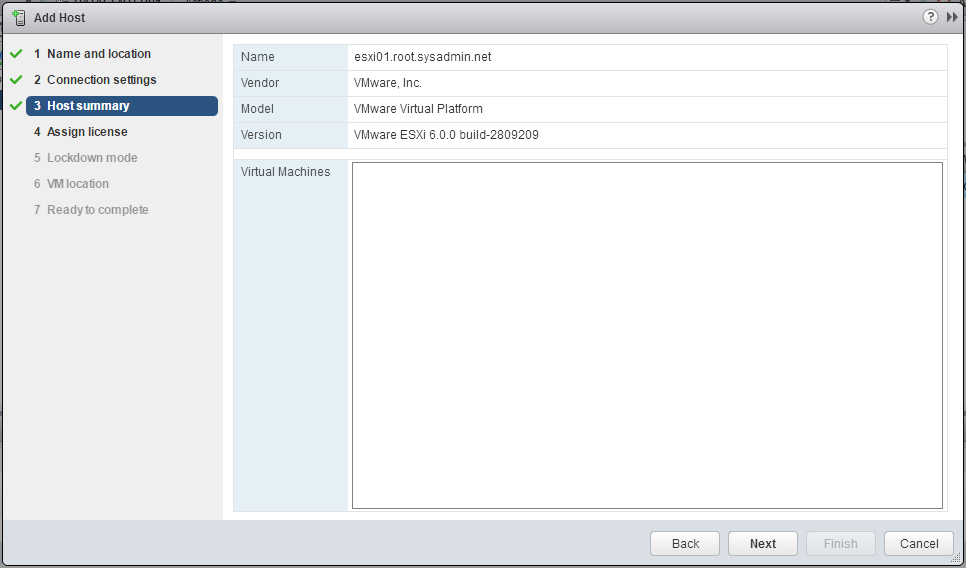
- On the Host Summary section review the information for the VMware ESXi 6.0 host and click Next.
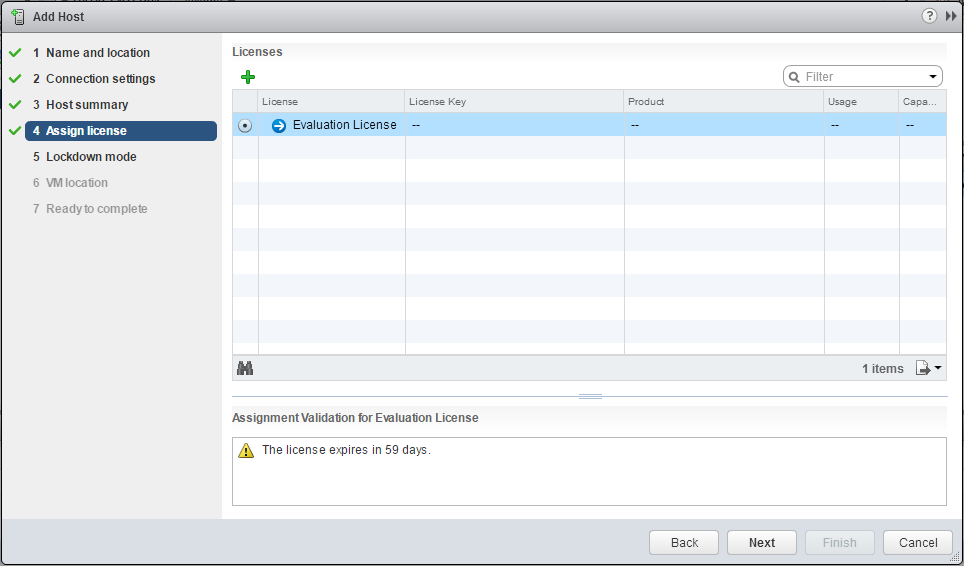
- On the Assign license section enter license information or select the Evaluation License and click Next.
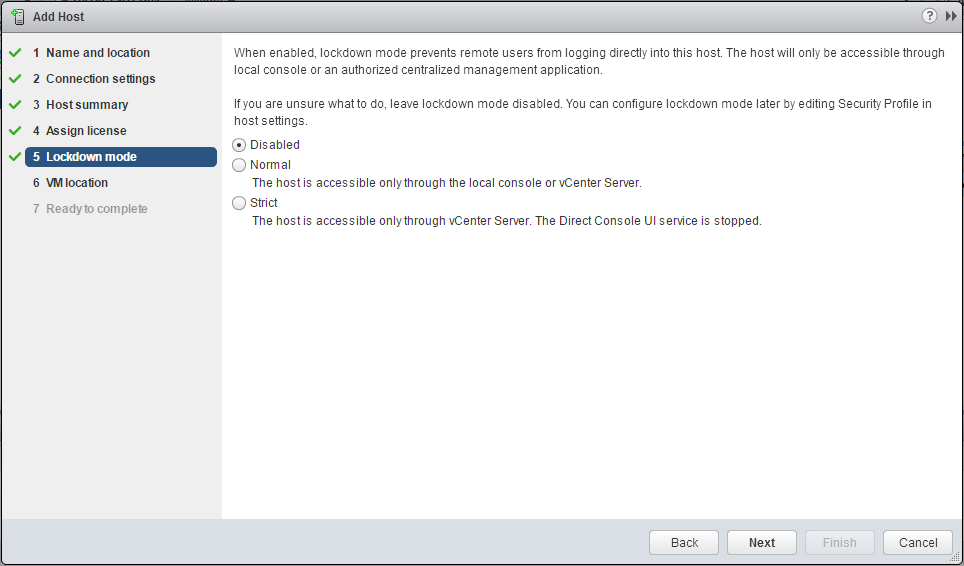
- On the Lockdown mode section accept the default setting of Disabled and click Next.
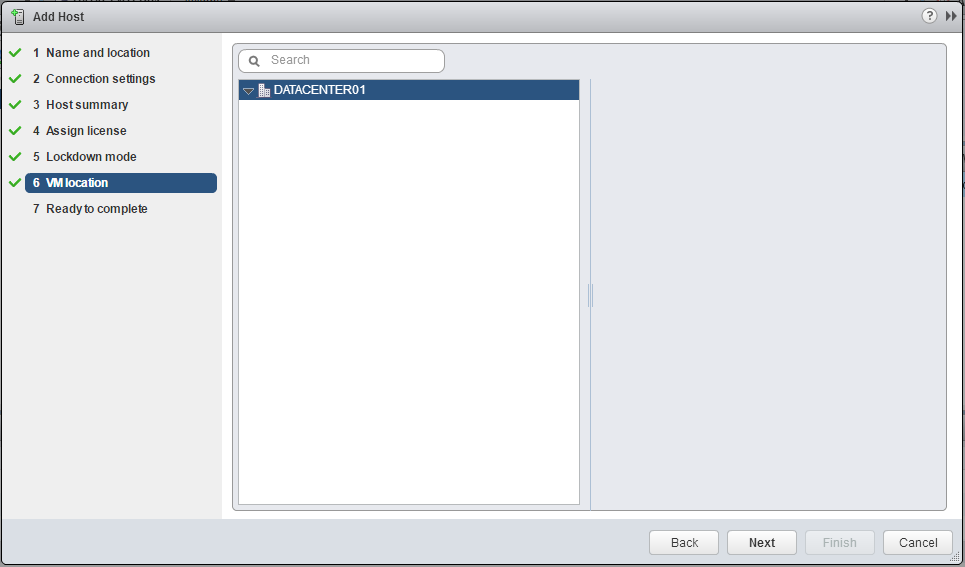
- On the VM location section accept the default setting of the datacenter object and click Next.
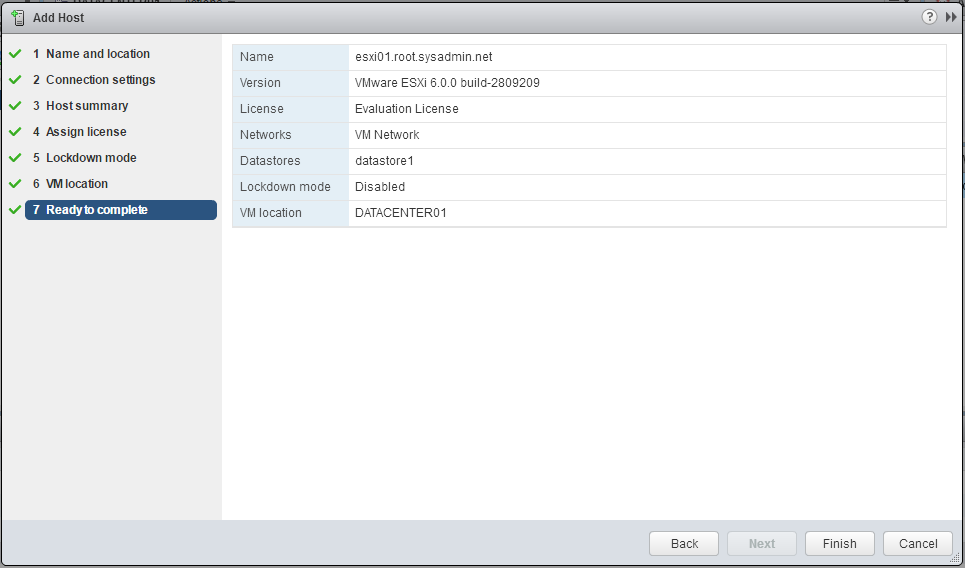
- On the Ready to complete section review the configuration settings and click Finish.
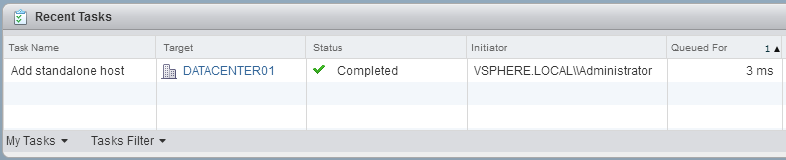
- In the VMware vSphere Web Client verify that a recent task completed adding the VMware ESXi 6.0 host to the datacenter.
- In the VMware vSphere Web Client verify that the VMware ESXi 6.0 host is located under the datacenter object.